Phone MIDI: Turn Your Phone into a MIDI Controller for Cubase – The Complete Step-by-Step Guide
This is a free download for your computer, not a tool that runs on the website: download the ZIP, run it on your PC, then open the tool in your phone's browser.
Contents
- The idea in short
- What you'll need
- Stage 1: Prepare the computer (one time only)
- Stage 2: Run the server
- Stage 3: Open the tool on your phone
- Stage 4: Set up Cubase
- The interface explained
- Updating the tool after editing the code
- Reducing latency
- The exe version (no Python needed)
- Problems we ran into and their fixes
- Daily routine (6 steps)
- Server settings (server.py)
- Files and links
- Command and link cheat sheet (copy and paste)
The idea in short
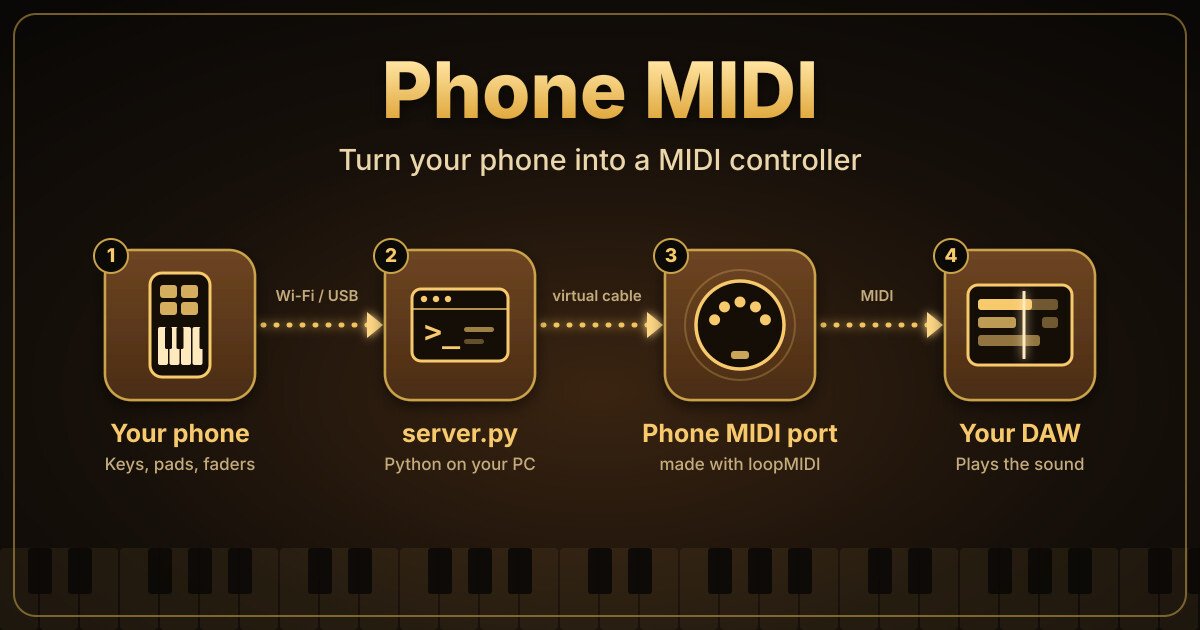
This tool turns your phone (Android or iPhone) into a MIDI controller: a keyboard, pads and faders that you touch on the screen, while the sound comes out of your music software (such as Cubase) on the computer. The phone itself makes no sound. It only sends commands: "a note was pressed," "a fader was moved." And it isn't an app you install. It's a web page you open in your phone's browser. The whole journey has 4 stops:
A web page on the phone (
index.html): shows the keyboard and sends your touches instantly.A Python script on the computer (
server.py): receives the touches and converts them into MIDI messages.A virtual MIDI port called Phone MIDI (from the loopMIDI program): connects the script to Cubase.
Cubase: receives from the port and plays the sound through a VST.
If Windows warns you (SmartScreen) because the file isn't signed, click More info, then Run anyway.
What you'll need
A Windows computer and a phone on the same network, plus free programs, most of which you install only once.
| Program | What it does | Link |
|---|---|---|
| Python | Runs the script (we used 3.14) | https://www.python.org/downloads/ |
| loopMIDI | Creates a virtual MIDI port on Windows | https://www.tobias-erichsen.de/software/loopmidi.html |
| Cubase | Receives MIDI and produces the sound (or any other music software) | You already have it |
| VST | The instrument that produces the sound | Included in Cubase or already installed |
| Phone browser | Chrome or Brave on Android, Safari on iPhone | Already on your phone |
Stage 1: Prepare the computer (one time only)
- Install Python. Download it from python.org and install it. On the first installer screen, tick Add Python to PATH. Without it the
pythoncommand won't work. - Install loopMIDI. Open it, type
Phone MIDIexactly in the port name box, and click the + sign. - Create a folder for the tool. Create a folder named
midion your desktop and putserver.pyandindex.htmlin it. - Open a terminal inside the folder. Right-click inside the folder and choose Open in Terminal.
- Install the only required library:
pip install aiohttp
Stage 2: Run the server
- Make sure loopMIDI is running and has a
Phone MIDIport. - In the terminal (inside the
midifolder) typepython server.pyand press Enter. - It prints a line saying the port was opened ("Phone MIDI"), followed by an address like
http://192.168.1.149:8000.
Stage 3: Open the tool on your phone
- Connect your phone to the same Wi-Fi network as the computer (not mobile data).
- Open the browser and type the address the server printed into the address bar at the top (e.g.
http://192.168.1.149:8000). - Look at the small circle in the top bar: green means connected to the server.
Stage 4: Set up Cubase
- Go to Devices > Device Setup > MIDI > MIDI Port Setup. Make sure
Phone MIDIis Active. - Go to Project > Add Track > Instrument, choose a VST (e.g. HALion One or Sylenth1), and click Add Track.
- Set Track Input to
All MIDI InputsorPhone MIDI. Set Output to your VST.
The interface explained
The interface includes Keys, Pads and Faders tabs. It supports multi-touch, glide, and pitch bend by dragging vertically on keys.
Updating the tool after editing the code
Save index.html, restart server.py, and refresh the page on your phone browser (use private mode or /?v=2 if cached).
Reducing latency
Use 5 GHz Wi-Fi or USB connection via ADB reverse (adb reverse tcp:8000 tcp:8000), and switch Cubase audio driver to ASIO4ALL with low buffer size.
The exe version (no Python needed)
Run build_exe.bat to generate a single dist\PhoneMIDI.exe file that runs without installing Python.
Problems we ran into and their fixes
If you get WinError 10048, kill existing python tasks using taskkill /IM python.exe /F and restart server.py.
Daily routine (6 steps)
- Start loopMIDI and verify
Phone MIDIport exists. - Run
python server.pyin terminal. - Run ADB reverse command if using cable.
- Open Cubase and check instrument track is set up.
- Open server address on phone browser.
- Play!
Server settings (server.py)
You can configure PORT = 8000 and PORT_NAME = "Phone MIDI" at the top of server.py.
Files and links
All files are available in the downloadable ZIP archive at the top of the article.
Command and link cheat sheet (copy and paste)
pip install aiohttp
python server.py
taskkill /IM python.exe /F